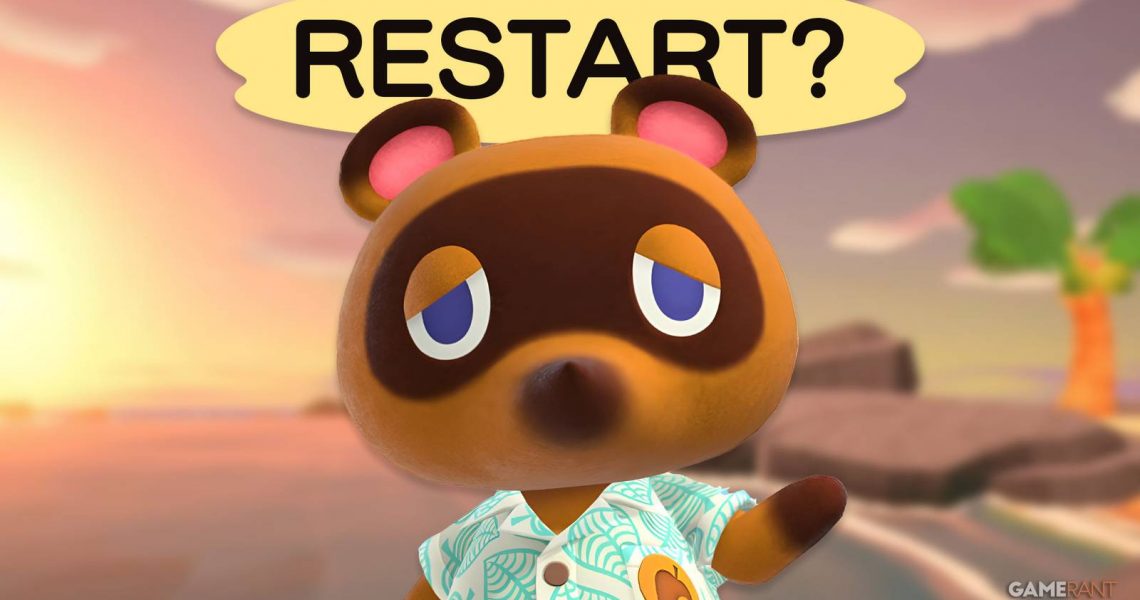
How to Delete & Restart Your Animal Crossing New Horizons Island
Animal Crossing: New Horizons first launched way back in March 2020, and it exploded in popularity with everyone carefully crafting their very own island paradise. From growing flowers and planting trees to meeting up with friends and welcoming new villagers to their island, players all over the globe were able to create an idyllic island experience.
But, for those players who are ready to start something new—wipe the slate clean and start fresh—creating a brand-new island can feel intimidating. With a cumbersome island transfer method already part of the game, players might be worried that starting over on a new island might be just as headache-inducing, but fear not: this guide covers everything you need to know.

Animal Crossing: New Horizons Player Builds Viking Boat Cemetery
One creative Animal Crossing: New Horizons player transforms a section of their in-game island into a historic Viking boat cemetery.
How to Delete Your Current Island in AC New Horizons

While many aspects of New Horizons can be cumbersome to a fault, deleting your island is pretty simple—if you look in the right place. You are unable to actually delete the island from within the game, however. Rather, you need to delete it from the Switch’s System Settings.
- First, ensure the game is closed, and you’re at the Switch’s home screen.
- After that, click on System Settings.
- Go to Data Management.
- Scroll all the way to the bottom and select ‘Delete Save Data.’
- Select the game in question (in this case, Animal Crossing: New Horizons).
- Select ‘Delete All Save Sata for This Software.’
It’s that simple! Now, when you boot up the game, you’ll be greeted as a fresh newcomer, ready to start your very own island adventure for the first time.

Best Comfort Food Games You Can Rely On
Comfort food games allow players to put down their worries and enjoy an experience they’ve grown familiar with.
How to Delete Another Player From Your Island

Whether you went through a tough breakup or you’re just trying to clear out some room on your bustling island, you might want to delete another player’s character from your island. This method is not obvious at all, so you’ve come to the right place! Unlike deleting your island, you will want to do this from within the game itself.
Boot up the game, but do not enter your island. At the title screen, under your user profile, hit the minus button (-) to speak with Tom Nook about various game settings. He lays out a bunch of options for you, but you want to select the ‘save data’ prompt. You want to delete user registration, and Tom will offer to delete them from the game.
This method does require the player to still have a profile on the Switch. If their profile has already been deleted, you’ll need to complete some extra steps. To delete another player’s character if they’re not attached to another profile on the Switch, you’ll need to create a new profile, log into the game, and you’ll be given an option to link the profile to an existing, unattached character on the account. Once this is complete, you can simply hit the minus button (-) again, go through the steps outlined above with Tom Nook to delete a user registration, and Tom will be able to delete the character at this point.

- Released
-
March 20, 2020
- ESRB
-
E for Everyone: Comic Mischief
- Developer(s)
-
Nintendo EPD
- Publisher(s)
-
Nintendo