How to Use Photo Mode in Clair Obscur Expedition 33
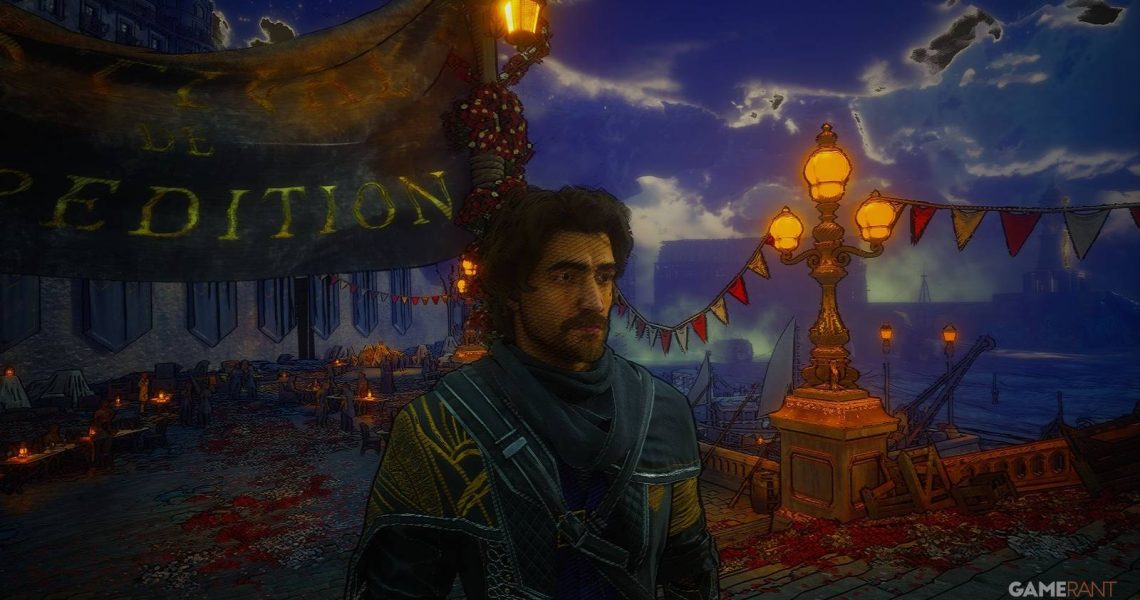
The newly crowned Game of the Year for 2025, Clair Obscur: Expedition 33, has released a new update, which includes the community’s most requested feature. With an in-depth Photo Mode, players are now able to capture their own expeditions like never before, using filters, lighting, and other effects to create art.

Clair Obscur Expedition 33 – The Chosen Path 100% Guide
At The Chosen Path in Clair Obscur: Expedition 33, you’ll need to choose a path for each of your characters in a series of challenges.
This guide will show players how to use Photo Mode in Clair Obscur: Expedition 33 and gloss over all the settings and options to get the best photos.
How To Use Photo Mode In Clair Obscur: Expedition 33

Opening Photo Mode in Clair Obscur is easy. Simply open up the options menu by pressing the back button and then select Photo Mode.
At this time, there doesn’t appear to be a hotkey to open Photo Mode instantly.
How To Move Around In Photo Mode
Photo Mode also acts as a free camera mode, allowing players to fly far away from their character to check out unseen parts of the game or capture unique angles.
On PC, players can fly around with WASD controls as well as E and Q to move up and down. Console players can use the two sticks to navigate and the triggers to control verticality. If you go too far, snap back with the reset button.
- PC: F
- Xbox: LS
- PlayStation: L3
When trying to line up exactly where you want for the perfect capture, hold down the Slow Mode button:
- PC: Left Shift
- Xbox: LB
- PlayStation: L1

7 Best Mods For Clair Obscur: Expedition 33
For those looking to enhance the Clair Obscur: Expedition 33 experience even further, these are the best mods available to download.
All Photo Mode Settings In Clair Obscur: Expedition 33

To mess around with settings and effects in Photo Mode, players will need to use the Toggle Menu button:
- PC: Space
- Xbox: X
- PlayStation: Square
After finding the right lighting and filters, toggle back to adjust the camera.
Camera

Under the Camera settings category, there are a few to keep an eye on, mostly to do with focus. It is here where photography experts will shine brightest, but others can figure it out, especially with Display Focus Point on, as this creates a yellow wall to show where the focus is.
The grid options are also great for lining up shots or using the rule of thirds.
Color Grading

In the Color Grading section, players can mess around with all aspects of color. There is brightness, temperature, and tint, as well as plenty of control over saturation, contrast, and gamma.
Filter

On top of classics like Black & White, there are some more fancy filters, such as Oil Painting, Brush Strokes, and Sketch.
By default, the filters are all at 1 intensity and often look too extreme. Lower this to something like 0.3 and then look through the filters.
Visual Effects

Under Visual Effects, players will find chromatic aberration, vignette, bloom, and film grain.
Characters

It’s possible to hide characters and enemies if players want to capture images of the environment instead.

Best PC Settings For Clair Obscur Expedition 33
Clair Obscur Expedition 33 is a visually stunning game that can perform even better on your PC with these best graphics settings.
Lighting

Under Lighting, players can create their own lighting, using either Point Lights or Spot Lights. On top of controlling the intensity and color of these lights, it’s even possible to move them.
This could be great for capturing close-ups of characters, and once again, photography experts will make the most out of these bells and whistles.

- Released
-
April 24, 2025
- ESRB
-
Mature 17+ / Blood and Gore, Strong Language, Suggestive Themes, Violence
- Developer(s)
-
Sandfall Interactive
- Publisher(s)
-
Kepler Interactive