Optimized Graphics Settings for Highguard on PC (Fix Locked FPS)
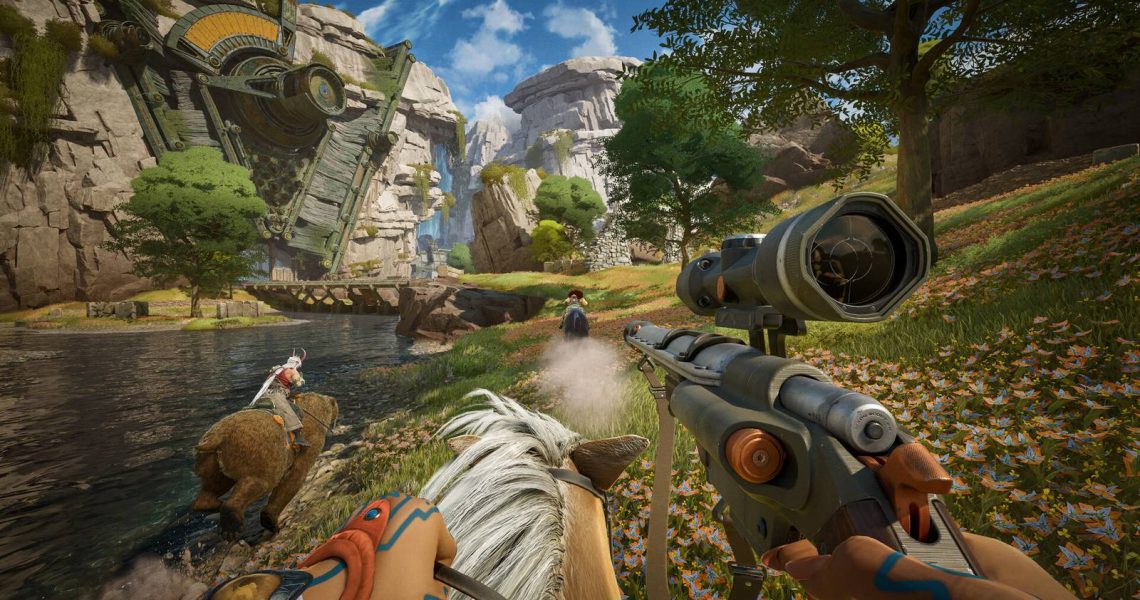
Highguard offers a sprawling world filled with destructible environments and visual effects that complement its fantasy setting. While the game introduces several gameplay mechanics that help it stand out, it isn’t immune to the optimization issues that plague many titles built on Unreal Engine 5. This guide highlights some of the best settings you can use in Highguard to improve performance and optimize the experience on PC.

Highguard Is Already Drawing Major Attention on Steam
New PVP raid shooter Highguard is already off to a fast start on Steam, as the game draws a mix of attention from thousands of players.
Optimized Graphics Settings for Highguard on PC

Highguard offers a decent set of graphics settings for players to adjust the game’s visuals to meet their desired performance. However, the game has a possible memory leak, which causes its performance to degrade after continued playtime.
Additionally, a lot of players have been noticing their FPS is locked to 60, which isn’t intended by developers, but can be quickly fixed with a tweak that I’ll share towards the end of this guide.
With that said, here are the optimized graphics settings for Highguard that you can use to optimize the game’s performance on your PC.
|
Settings Type |
Settings Name |
Best Setting |
Notes |
|---|---|---|---|
|
Display |
Windowed Mode |
Windowed Fullscreen |
Works just as well as regular full-screen, and allows players to switch in and out of the game with ease. |
|
Resolution |
Native |
When selecting the Windowed Fullscreen option, the resolution will be auto-selected as the native res of your display. |
|
|
V-Sync |
Off |
Turning V-Sync on will introduce input lag, so best to leave it disabled. |
|
|
Max FPS |
Uncapped |
Best not to lock your FPS. Despite selecting uncapped here, players will be locked to 60 FPS, but there’s a fix to this issue that will be discussed after this section. |
|
|
Field of View (FOV) |
Player’s Preference |
While 90 is an adequate FOV which is selected by default. However, players can increase the FOV, but it’ll be costly in performance depending on your hardware. |
|
|
Graphics |
Global Quality |
Custom |
No need to use a quality preset, as we’ll be tweaking individual graphics settings. |
|
Internal Resolution |
65% |
If you’re using Nvidia DLSS, 65% should be enough to activate the quality mode. You can fall to 50% to use the performance mode, but it’s not recommended to go any lower than 50%. |
|
|
Anti-Aliasing Mode |
DLSS/TSR |
Highguard currently only supports Nvidia DLSS and does not have an option for FSR. Players without Nvidia RTX GPUs will need to use TSR for now. |
|
|
Shadow Quality |
Low |
The shadow quality option takes a major toll on performance, especially in areas outside your base. Best to leave it at low as it does not impact your gameplay. |
|
|
Global Illumination Quality |
Low |
Another taxing graphical setting that will impact how light projects in-game. This is mainly for aesthetics and should be set to low to gain more performance in Highguard. |
|
|
Reflection Quality |
Low |
There are several reflective surfaces indoors that will tank your FPS if you’re raiding a base or defending your own. Best to leave it at low. |
|
|
Anti-Aliasing Quality |
High |
AA Quality will improve the look and crispiness of textures, which will help reduce the blurriness a bit. |
|
|
Texture Quality |
GPU VRAM Dependent |
6GB VRAM: Low, 8GB VRAM: Medium, 10GB+ VRAM: High |
|
|
Effects Quality |
Medium |
While effects only come into play when there are explosions or other particle effects happening on the screen. If your setting is high, this can cause FPS drops for some players due to the unoptimized nature of the game. Best to keep this at medium. |
|
|
Post-Processing Quality |
High |
– |
|
|
Foliage Quality |
Low |
Greatly impacts FPS in Highguard, as the game consists of large open maps filled with vegetation. This can cause low FPS or even lead to stuttering for players who are engaging in fights outdoors. |
|
|
Shading Quality |
Low |
– |
The optimized graphics settings for Highguard above were tested on a system with an Intel i9-14900HX CPU, Nvidia RTX 4080 GPU, and 32GB RAM. The FPS were averaging around 85–90 when in base, and about 75 in the open. The 1% FPS was at 55, which mostly happened when I was playing for a prolonged period of time.
How to Fix the Locked FPS Issue & Uncap FPS for Highguard

For many players, Highguard FPS has been locked to 60, which isn’t ideal if you want to play the game competitively. While the FPS should only be locked in menus, the lock persists even when you enter a match.
Even if you set the in-game framerate limit option to “uncapped,” the FPS will remain locked at 60 unless you tweak the configuration file.
To find the configuration file to remove FPS lock, you’ll need to check out Highguard’s folder, which contains all the configuration files in the local directory. Simply follow the steps below.
- Press Windows Key + F to open up the Windows Run prompt.
- Type Appdata and hit enter.
- Head inside the following directories: Local > Highguard > Saved > Config > Windows Client.
- Open up the file named GameUserSettings via Text Editor.

Inside the file, change the following attributes to your desired framerates. I’m going to use 240 as it’s the max display refresh rate of my monitor/display.
- FrameRateLimit_OnBattery=240.000000 FrameRateLimit_InMenu=240.000000 FrameRateLimit_WhenBackgrounded=30.000000 MobileFrameRateLimit=240
Lastly, you’ll also need to manually change the value of the FrameRateLimit attribute to 0.000000. This will unlock Highguard’s FPS and will allow you to run the game at your desired FPS.
If your changes to the GameUserSettings file are reverted to original after launching Highguard, you can right-click on the file and set it to “Read Only.”

- Released
-
January 26, 2026
- Developer(s)
-
Wildlight Entertainment
- Publisher(s)
-
Wildlight Entertainment
- Multiplayer
-
Online Multiplayer
- Cross-Platform Play
-
Full

