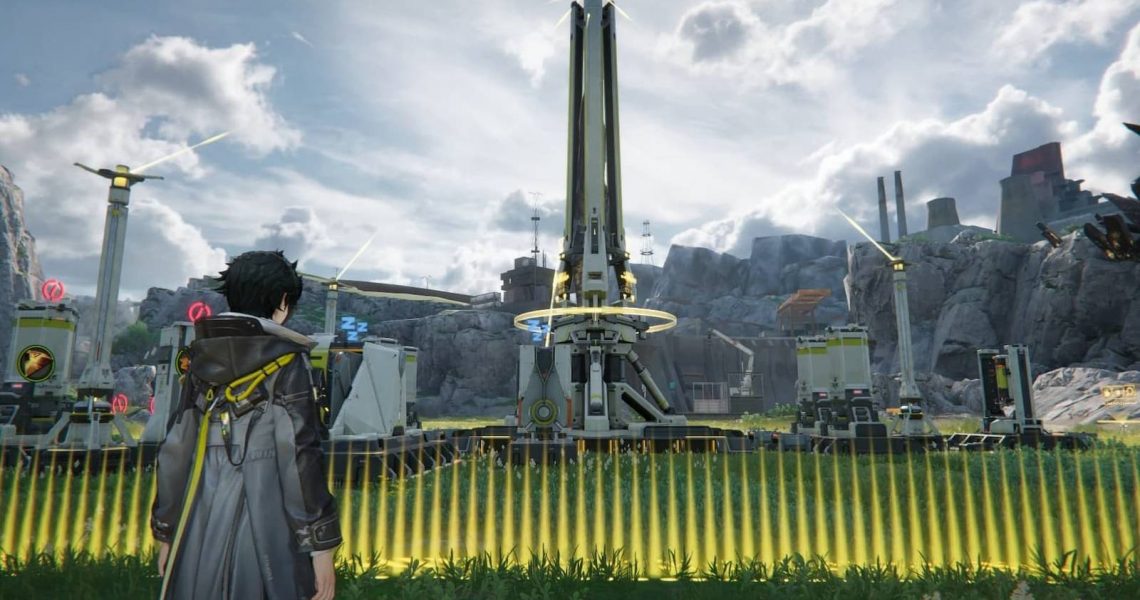

Arknights Endfield isn’t just about fighting bad guys and saving the world. There’s plenty of downtime in between fighting and exploring, and if you just want to sit back and enjoy the scenery, or if you want to take a picture of something cool you found, you’ll be glad to know that the game does indeed have a Photo Mode for you to use. Endfield doesn’t exactly tell you that, though, and while it’s not hard to find or use at all, it’s very easy to overlook.
How to Use Photo Mode in Endfield

There’s a quick access wheel button for tools over your in the right side of your screen, just above your Operators’ skills. Hold that button down to reveal the wheel, and you should see a Camera option in one of the slots. Select the Camera option to enter Photo Mode in Endfield.
Photo Mode options are fairly limited. You can adjust the camera’s aperture and zoom level, and you can move it around too. There’s also an option to enter first person mode for more focused shots. Unfortunately, you can’t force Operators to pose or play specific idle animations, though you can control their formation and their visibility.
Endfield’s Photo Mode has the following options/features:
- Scene Controls let you show/hide Operators, NPCs, factory buildings, and item drops. It also has an aperture slider.
- Formation lets you adjust your team’s positions.
- Filters lets you change the color grading of your shot.
- Stickers lets you stick a decal on your screen.
Take note that you won’t be able to move while in Photo Mode unless you toggle the Operator and Camera Control mode. Refer to the instructions written on your screen to find which button toggles this option.
Where to Find Saved Screenshots in Arknights Endfield

If you’re playing on PC, any screenshot you take using Endfield’s Photo Mode will be sent directly to your Pictures folder. Meanwhile, if you’re playing on a phone or consoles, check your respective device’s gallery. Alternatively, you can always just hide the game’s UI and take a screenshot using your device itself.